
Creating a wallet takes under a minute. One step in it matters more than everything else in this documentation combined.
- 01
Tap “Create a new wallet”
The app generates a random recovery phrase using the device's secure random number generator. Nothing is requested from a server; nothing is sent to one.
- 02
Approve with biometrics
Face ID, Touch ID or the Android equivalent. This binds the wallet to your device's secure hardware, so the key can only be used after you prove you are present.
- 03
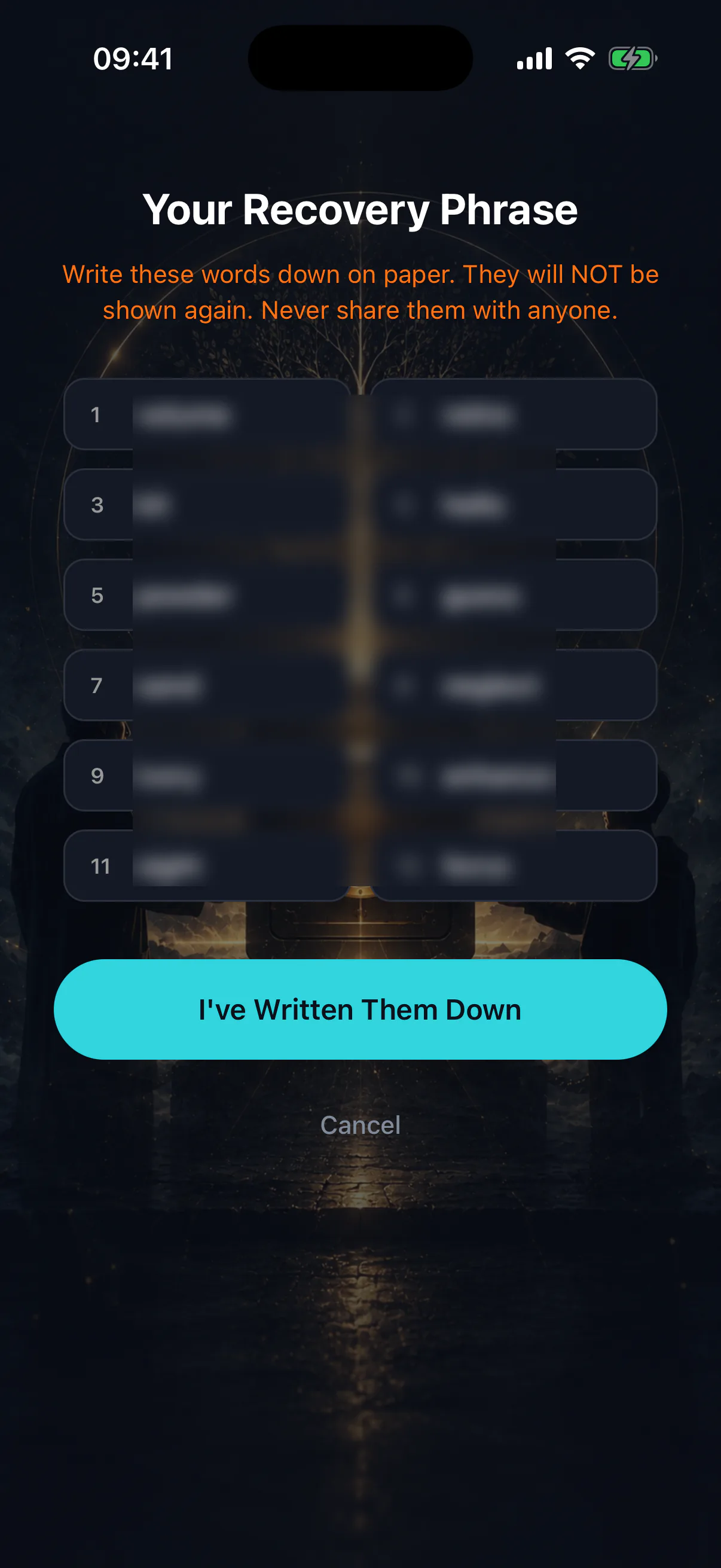
Write the recovery phrase down
You are shown the phrase once. Copy it onto paper, in order, and check every word. Do not screenshot it, do not photograph it, do not put it in a notes app or a password manager that syncs to a cloud.
- 04
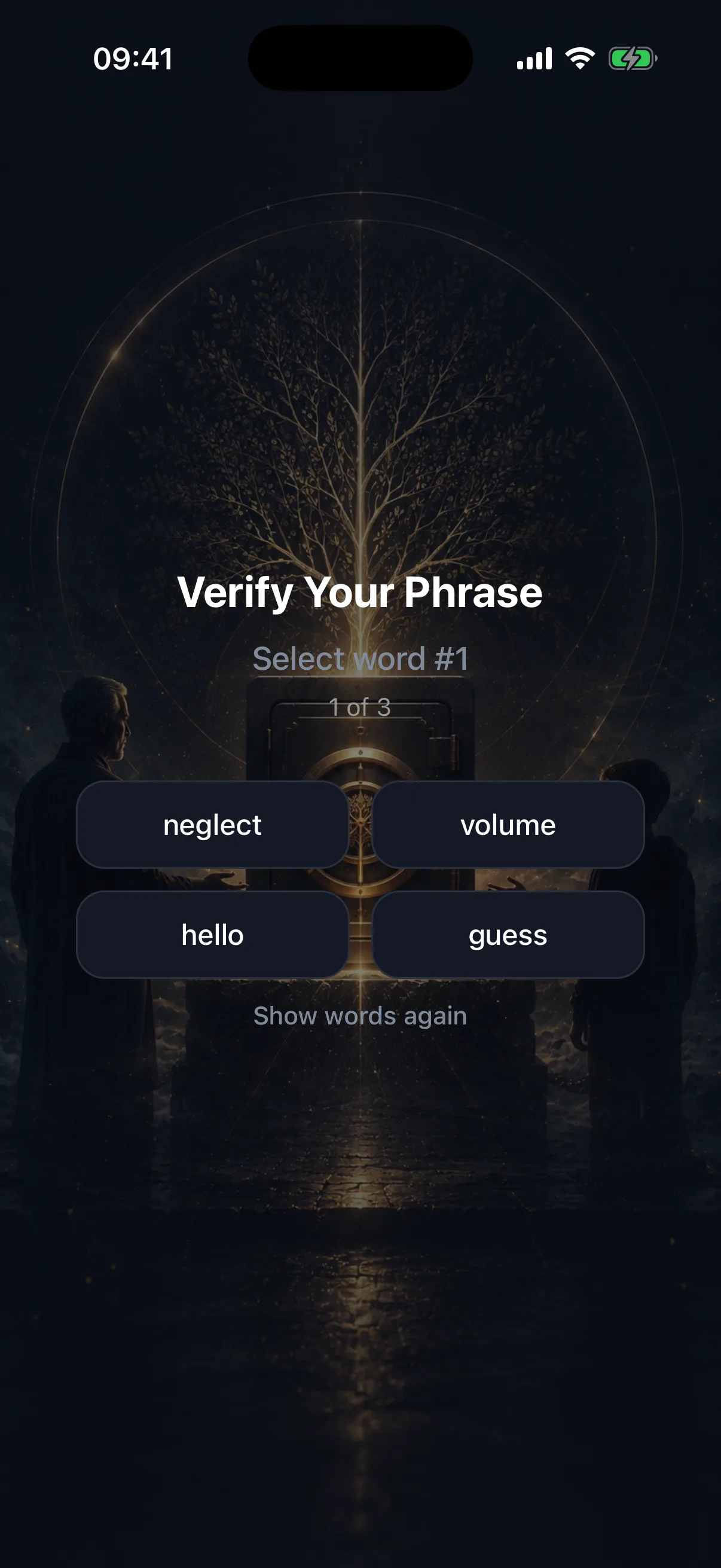
Confirm the phrase
You are asked to re-enter some of the words. This is not busywork — it is the only proof that your backup is actually correct while it can still be fixed.
- 05
Name the wallet (optional)
A label to tell wallets apart on the device. It is local, cosmetic, and never leaves the phone.
The phrase is the wallet
Anyone with those words controls the funds, on any device, forever. Nobody can reset it, revoke it, or issue you a new one. If you lose the phrase and lose the device, the wallet is gone — and inheritance does not save you here, because the Switch protects your heir, not you.
What actually got created
- A recovery phrase — a BIP39 mnemonic that can regenerate the key anywhere.
- A private key, derived from that phrase, stored in the iOS Keychain or the Android Keystore and guarded by your biometrics.
- A public address — the string starting with a mix of letters and numbers that you give people so they can send you funds. It is public by design.
The private key never leaves secure storage in a readable form, is never written to app storage or logs, and is never transmitted. See where your keys live for the detail.
Immediately afterwards
- Store the written phrase somewhere a fire or a burglary will not reach both it and your phone. See backing up your recovery phrase.
- Send yourself a tiny test amount and confirm it lands, before you send anything meaningful.
- Only then set up the Switch — see setting up the Switch.
Do not put your own phrase in your own vault
It is a natural instinct and the app blocks it deliberately. A recovery phrase that unlocks the device also unlocks the vault, so storing it inside itself protects nothing. See storing a recovery phrase.