
The warnings are the safety net. The whole design assumes that a living person who is told their timer is nearly up will do something about it.
The schedule
On a one-year timer
- First warning
- ~90% elapsed — around day 330
- Final warning
- ~96% elapsed — around day 350
- Claim window opens
- Day 365 — your heir may now start a claim
- Heir started a claim
- Sent as soon as it happens
- Challenge closing
Around 24 hours before the window shuts — your last chance to cancel
- Challenge closed
- The claim can now be finalized
The percentages are fixed, so the same proportions apply to any timer you set. On a three-month timer the first warning is around day 81.
How they reach you
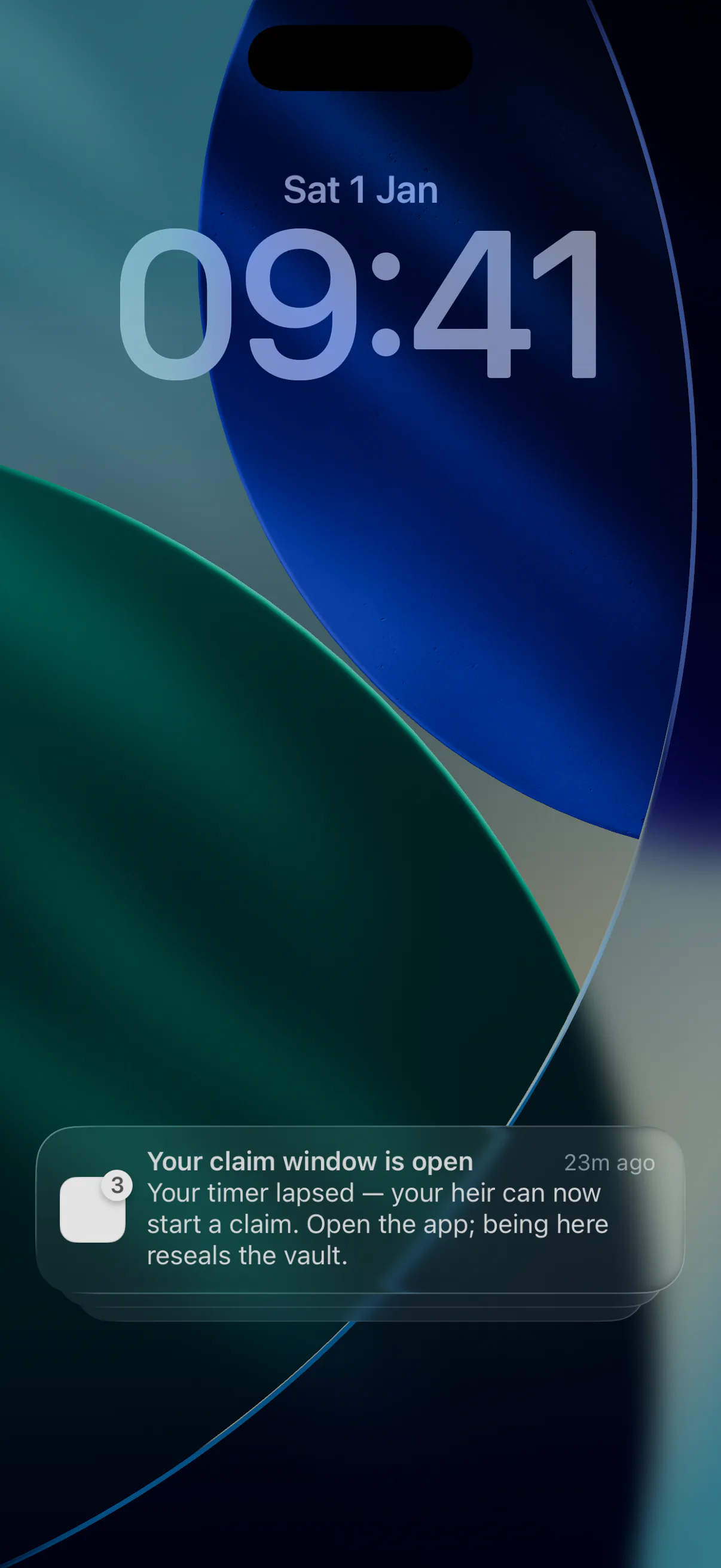
Scheduled on the device. The warnings are computed from timestamps already on your phone, so they fire without a network connection and without any server knowing anything about you. This is the primary net.
Sent by the watcher. A background service reads public on-chain state and can reach you through the contact details you registered. This covers the cases a device cannot predict — most importantly, your heir starting a claim, which no schedule can anticipate.
Warnings deliberately never say "you have not checked in" as a statement of fact — a device can be out of date. They say to open the app, because opening the app both confirms the truth and fixes it.
Declining notifications removes the net
Without them the first you would know about a lapsed timer is when you next happen to open the app. The switch still cannot fire without a full challenge window elapsing, but you have given up every early warning that window depends on.
Turning them on
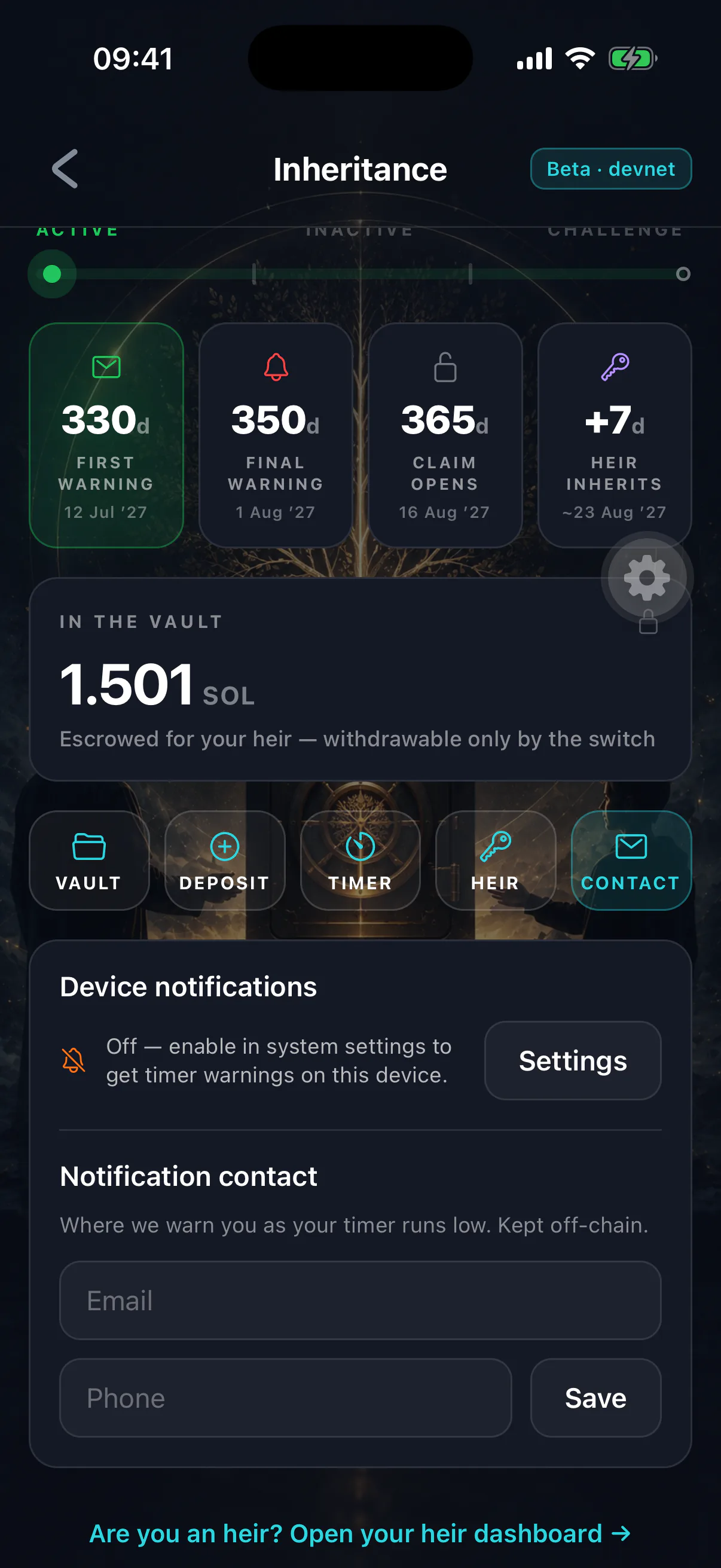
There is no permission prompt at first launch. The app asks in context — after you set up the Switch, and again if you start watching someone as their heir.
If you declined, you can grant permission from the inheritance screen, which deep-links into your OS notification settings.
Heir-side notifications
If you are watching someone as their heir, you also get alerts: when their claim window opens, and when a challenge window you started has closed and can be finalized. See watching an owner's status.
When nothing arrives
Common causes are OS-level permission still denied, notifications muted for the app, a device that has not opened the app in a long time, or — on Android — push delivery not yet configured. See notifications are not arriving.
Do not rely on notifications alone
They are a net, not the plan. The plan is opening the app often enough that the warnings never fire.